
Description
Royal Backup, Restore & Migration is a powerful and easy-to-use WordPress backup plugin that helps you protect your website by creating full site backups, database backups, and automatic scheduled backups in just a few clicks. The Powerfull and Easy to use Migration feature lets you migrate, clone or copy any website from staging website to Live Website easily, Whether you want to secure your website from crashes, plugin conflicts, hacking attempts, or update failures, this plugin ensures your WordPress site can always be restored quickly and safely.
Unlike other WordPress backup plugins, Royal Backup includes a unique smart backup reminder system that automatically prompts you to create a backup before updating plugins, themes, or installing new ones — preventing accidental data loss.
With Royal Backup, you can create complete WordPress backups including database, plugins, themes, uploads, and wordpress core files (PRO version), then restore your website instantly with one-click restore. The plugin also supports automatic backup scheduling (PRO version), allowing you to run hourly, daily, weekly, or monthly backups without manual effort.
You can also securely store backups in cloud storage (PRO version) such as Google Drive, Dropbox, and Amazon S3, manage multiple backup locations, and perform selective backup and restore operations. Additionally, the built-in database reset tool lets you instantly reset WordPress to a fresh state without reinstalling.
🚀 Visit Plugin Homepage
✅Key Features of Free Version
- Unique Feature – Backup Notification During Theme or Plugin Updates or Installation – No other plugin offers this feature – ⏩ See Video. Plugin will remind you to make wordpress backup before activating or updating themes or plugins.
- Full Website Backups – Backup your entire WordPress website including database, plugins, themes, uploads, and other files.
- Full Website Restore – Restore your entire WordPress website including database, plugins, themes, uploads, and other files.
- Full Website Migration – Clone – ⏩ See Video Migrate, clone or copy any website from staging website to Live Website easily.
- Assign Custom Names to your Backups – Assign custom names to wordpress backups for easy identification and organization.
- Backup Component Downloads – Download individual wordpress backup components such as the database, plugins, themes, and more.
- Background Backup – Feel free to refresh or close the browser window during wordpress backups — this won’t break the backup process.
- Backup & Restore Progress Tracking – Real-time progress updates during wordpress backup and restore operations
- Database Reset – Reset your WordPress database to a fresh installation – You do not need to reinstall WordPress, simple one click and your WordPress reverts to original fresh state.
- Backup Management Simple User interface – View, download, restore, and delete website backups from a simple interface
✅Video overview of Backup Notification During Theme or Plugin Updates
✅Migration Overview (Quick Guide)
🌟Key Features of PRO Version
- Backup Core WordPress Files – Backup all core WordPress files including wp-admin, wp-includes, and essential root files such as wp-config.php, .htaccess, and more. If something damages or alters these core files — such as viruses, hacker attacks, plugin updates, theme changes, or WordPress updates — you can always revert and restore the original WordPress files.
- Schedule Backups – Schedule backup to run every 1 hour, 12 hours, daily, weekly, once every two weeks and monthly. So you can ‘set and forget’ about Backups. Backup Schedule can be configured for Files and databases separately.
- Unlimited file Size for Migraiton – Migrate websites without file size limits. Migrate websites from remote storage services such as Google Drive, Dropbox, and Amazon S3.
- Google Drive Cloud Backup – Store backups securely on Google Drive. One Click Configuration.
- Dropbox Cloud Backup – Store backups securely on Dropbox. One Click Configuration.
- Amazon S3 Cloud Backup – Store backups securely on Amazon S3. Other Popular Cloud Backup Providers.
- **Save Backups in multiple locations simultaneously. ** – Backups can be created and saved simultaneously on your wordpress site and on Cloud storage (Google Drive, Dropbox, Amazon S3) as well. If one Backup location fails, you’ll still have the option to restore or download from the others.
- Backup Retention – Automatically delete older backups to save disk space while retaining recent ones — with full control over how many backups to keep.
- Selective Backup – Choose specific components to backup — such as the database, plugins, themes, WordPress core files, or uploads — individually.
- Selective Restore – Choose specific components to restore – such as the database, plugins, themes, WordPress core files, or uploads — individually.
- Backup Rename – Rename your backups to improve identification, organization, and management.
- Customizable Defaults – Save your preferred WordPress backup and restore settings as defaults — so you don’t need to preselect them every time you perform a backup or restore.
- Incremental Backups (Coming Soon) – Backup only the files and folders that have changed since your last backup, saving both time and storage space.
- WordPress Multisite Network Support (Coming Soon) – Full support for WordPress Multisite networks, all WordPress Multisite files and databases will be stored in the backup.
- Clear Uploads Directory – Perform a full cleanup of the uploads folder during a database reset for a completely fresh start.
- Priority Support – Get direct support from the developers whenever you need help with your backups.
Use Cases
- Regular Backups – Manually create backups of your WordPress site and give them name.
- Development & Testing – Reset your WordPress database for testing or development purposes. This process deletes all files, settings, and posts — giving you a fresh WordPress installation without needing to reinstall WordPress manually. If you’re a tester, you can also create predefined testing backups. For example, create a backup named “Test 1” with pre-installed plugins or themes you frequently use. Or create a backup named “Astra Theme – Template Imported”, where an Astra theme template is already imported — so you can instantly restore your preferred setup from backups without having to re-import everything.
- Pre-Update Safety – Sometimes we forget to create a backup before updating plugins or themes, or when installing new ones. Our smart notification system reminds you to create a backup before these potentially risky actions.
- Only Database Backup – If you’re creating new content daily on your WordPress website — such as posts, pages, and more — you can choose to backup only the database, saving significant storage space. Full file backups can be performed less frequently, such as once per week.
- Only File Backups – If you only want to backup specific WordPress files without the database, you can do so and restore them whenever needed.
- Only WordPress Core files Backup – Securely backup your WordPress core files and easily restore them if they become damaged — for example, by viruses or caching plugins that modify critical files like .htaccess and wp-config.php.
- Automatic Schedule Backups – Our backup plugin will automatically create backups in the background while you work on your WordPress website.
Technical Features
- Built following WordPress coding standards and security best practices
- Nonce verification and capability checks on all operations
- Proper input sanitization and output escaping
- Resumable backups for large websites
- AJAX-powered interface for seamless user experience
Screenshots
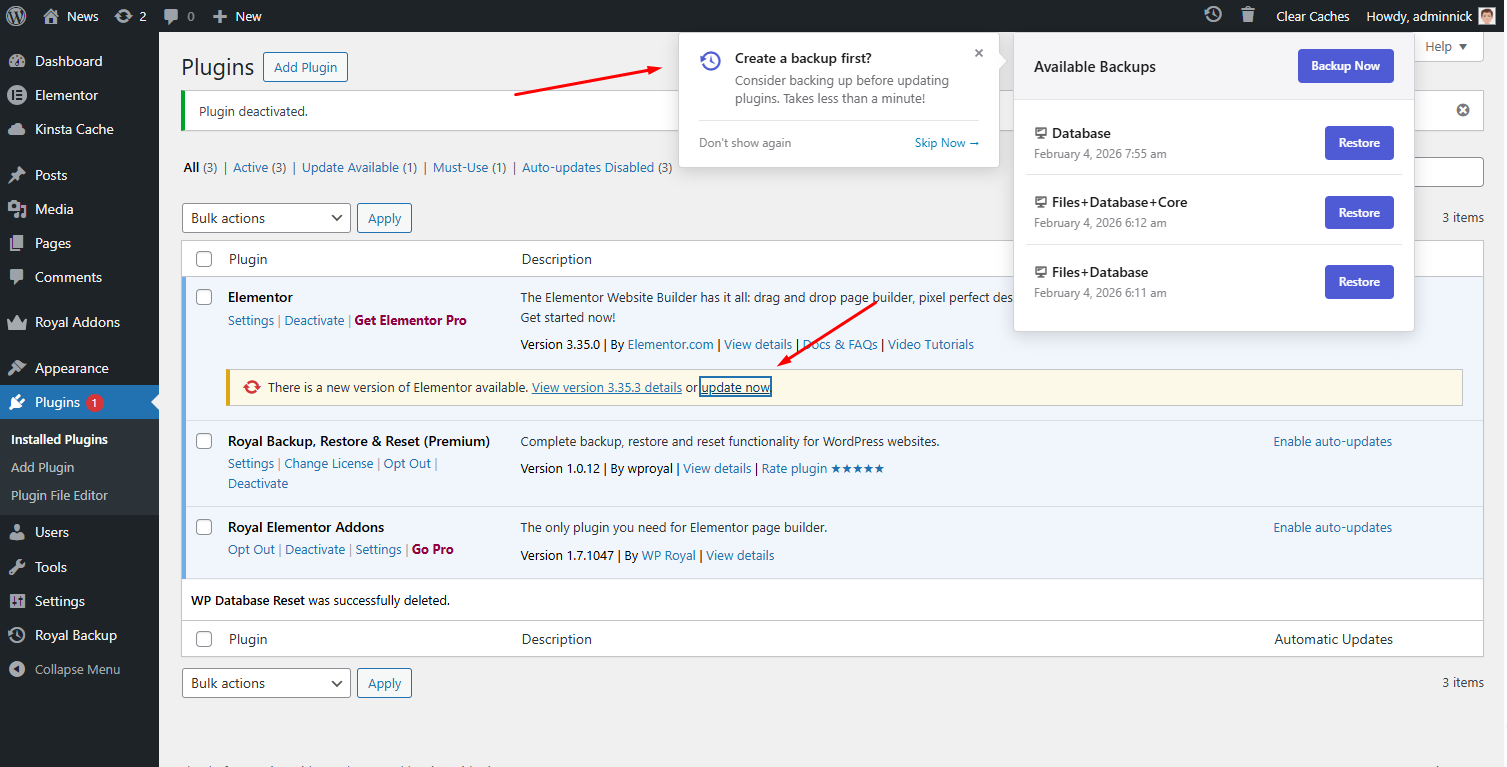
Automatic Backup Reminder in Mini Popup Window 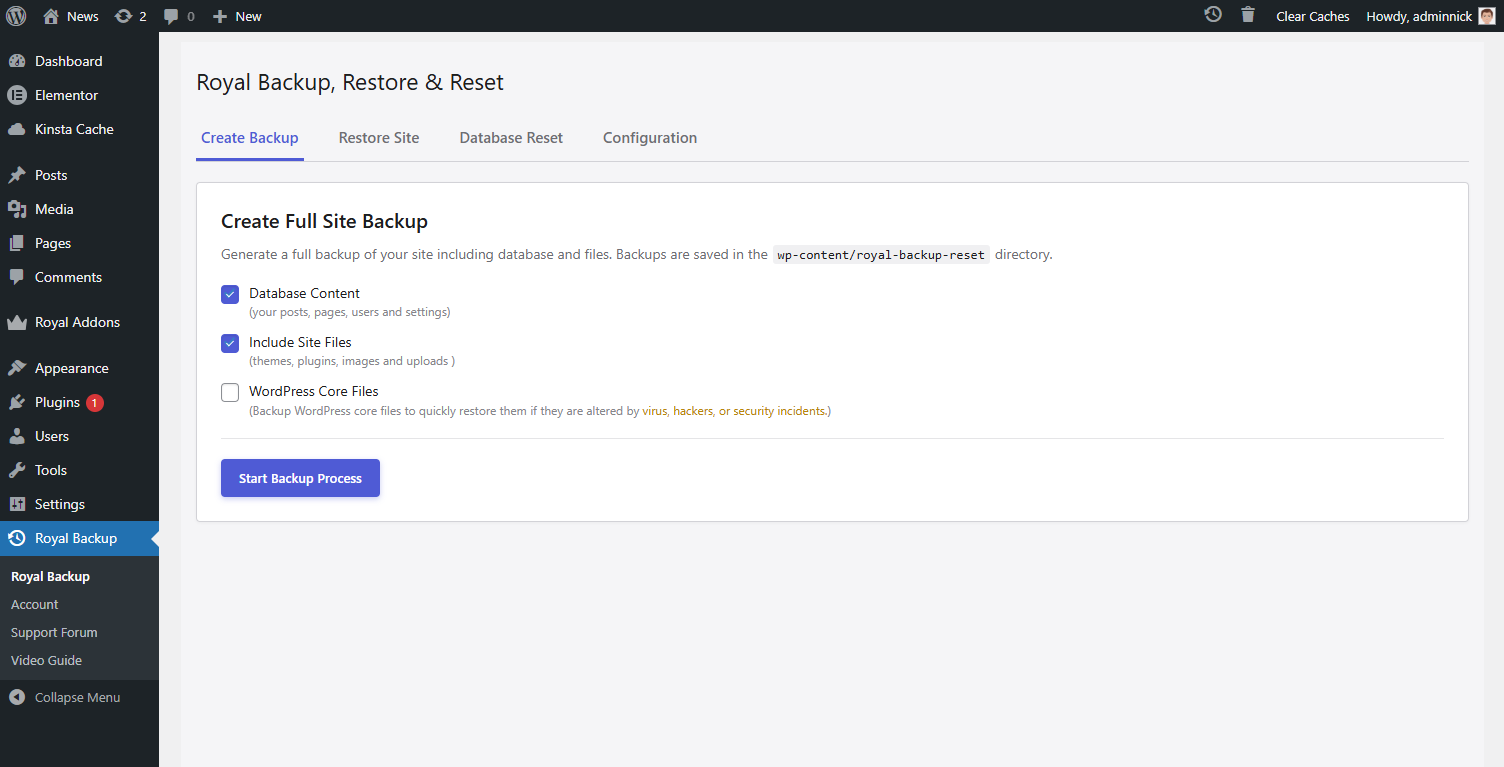
Main Backup Page 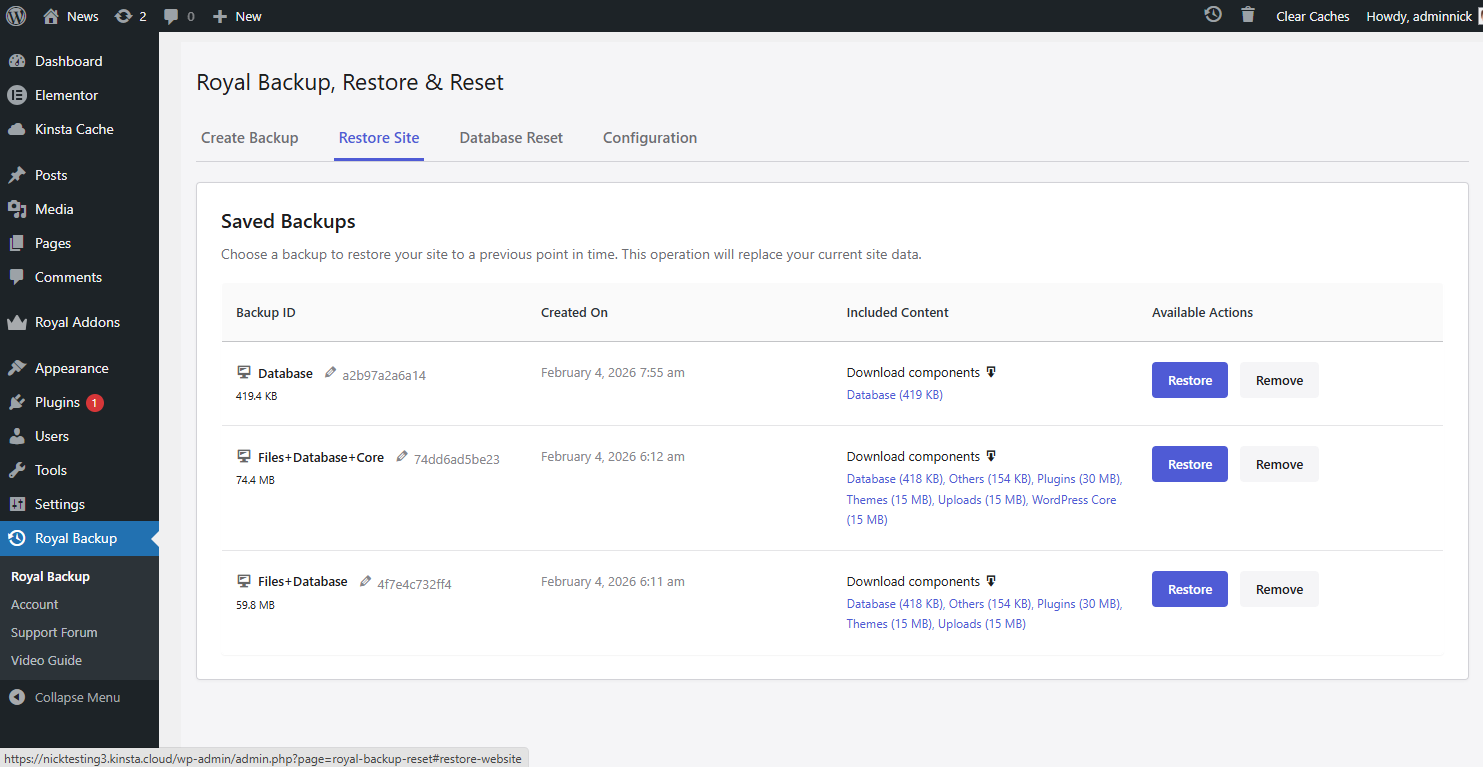
Main Backup Restore Page 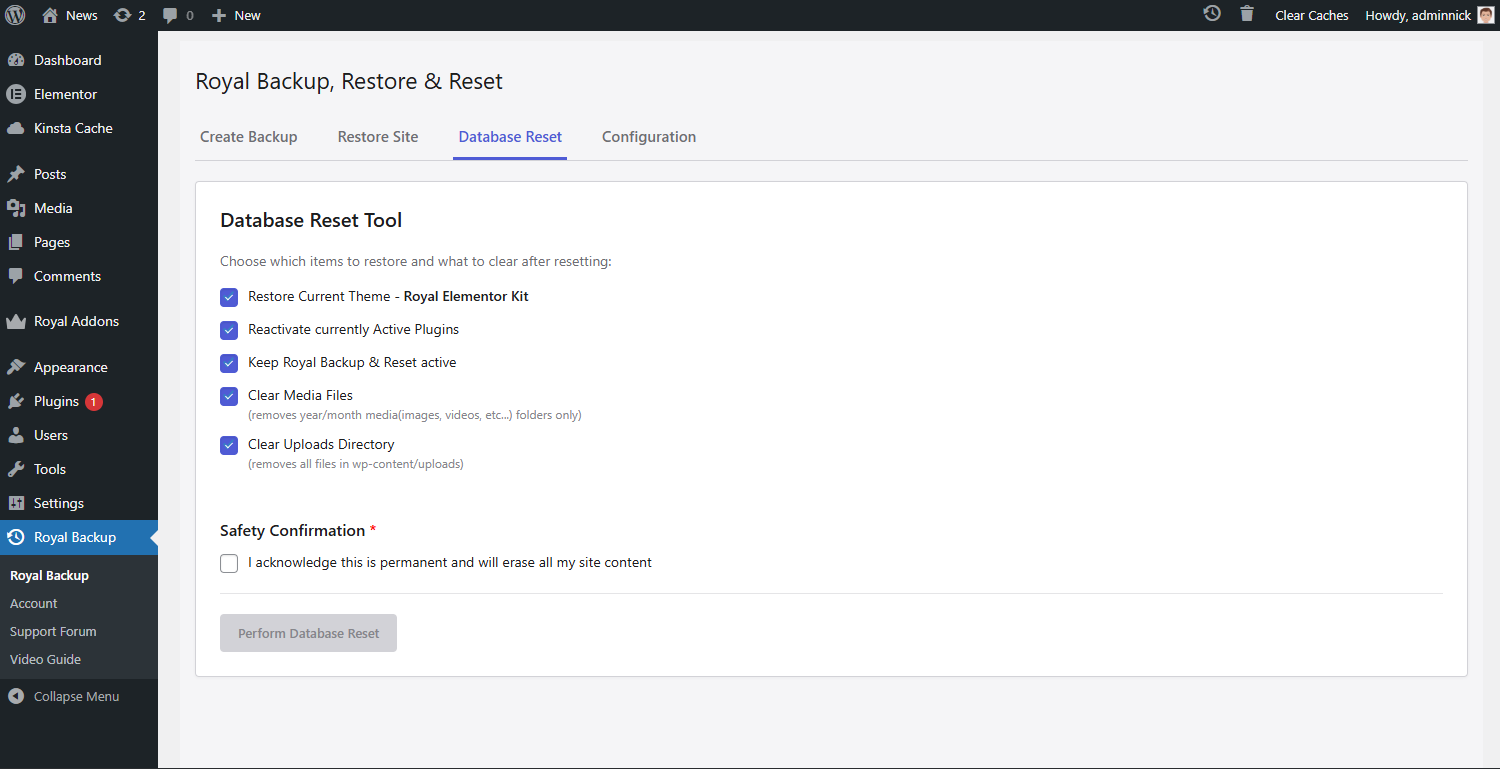
Database reset options 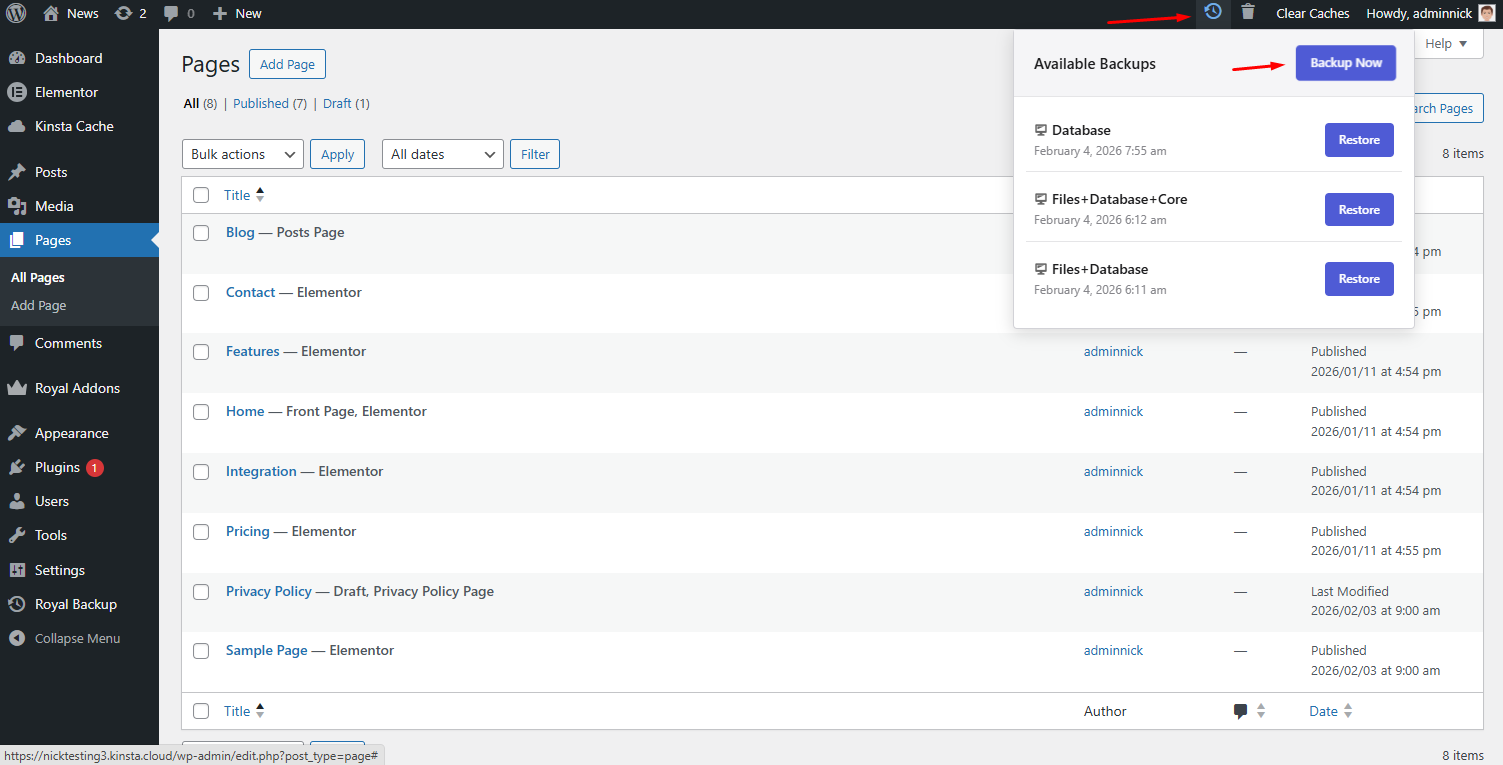
Mini Backup Icon 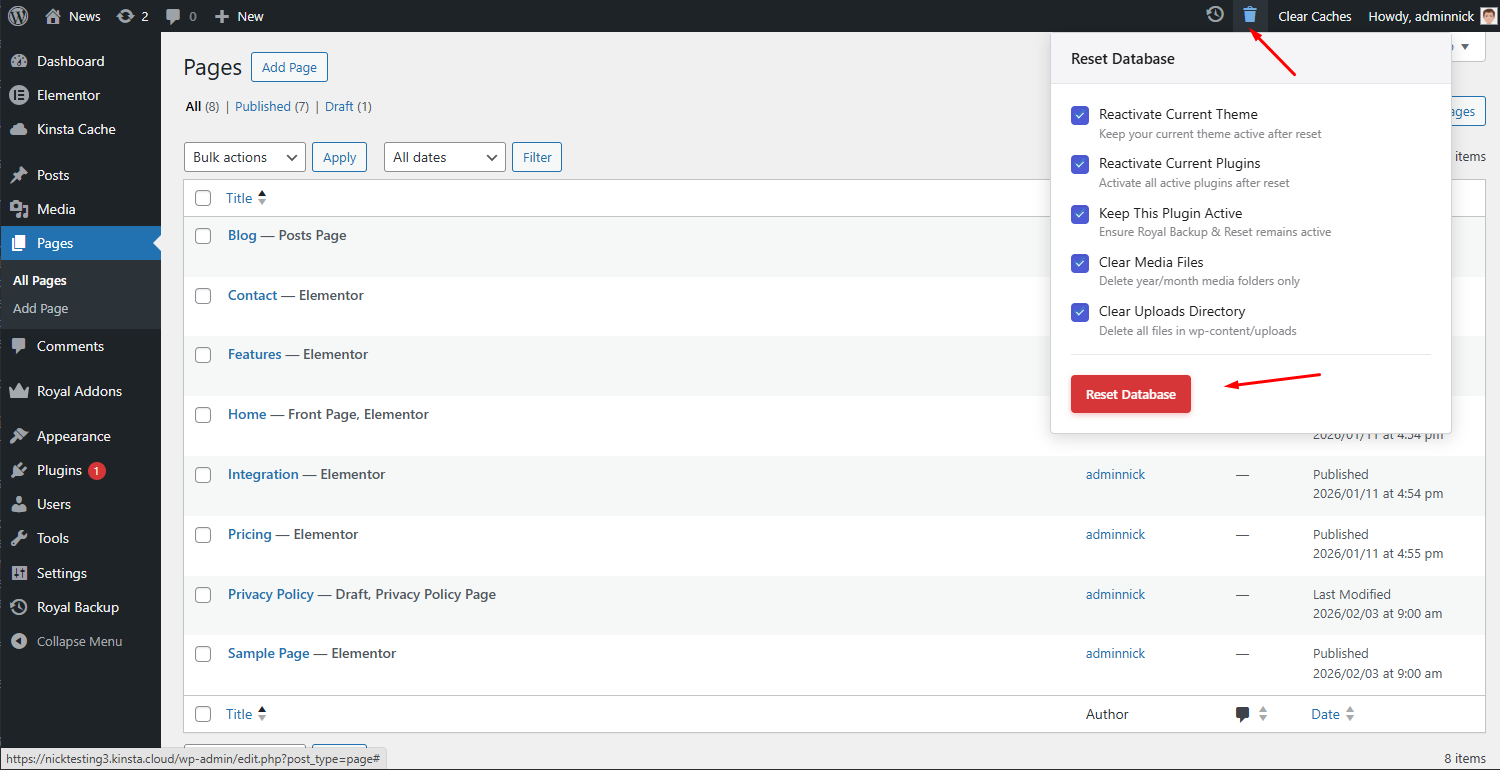
Mini Database Reset Icon
Installation
WordPress Admin Method
- Go to your administration area in WordPress
Plugins > Add - Look for
Royal Backup(use search form) - Click on Install and activate the plugin
- After activating Royal Backup plugin you will see it in the admin dashboard menu with the name Royal Backup
- Create your first backup using the “Create Backup” tab > Select what to include in the backup, Press “Start Backup Process” Button
- To Restore your backup navigate to Restore Site section, choose backup to restore and press Restore button
- To Delete your backup navigate to Restore Site section and press Remove button. This will completely remove all backups files and folders. This action can’t be undone
FTP Method
- Upload the
royal-backup-resetfolder to the/wp-content/plugins/directory - Activate the Royal Backup, Restore & Reset plugin through the ‘Plugins’ menu in WordPress
- In the WordPress appearance menu go to in Royal Backup to start using the plugin
- Create your first backup using the “Create Backup” tab > Select what to include in the backup > Press “Start Backup Process” Button
- To Restore your backup navigate to Restore Site section, choose backup to restore and press Restore button
- To Delete your backup navigate to Restore Site section and press Remove button. This will completely remove all backups files and folders. This action can’t be undone
FAQ
-
How to create My First Website Backup?
-
Navigate in Plugin main Menu – Look for “Royal Backup” Name in your WordPress admin dashboard, Navigate to “Create Backup” tab > Select what to include in the backup > Press “Start Backup Process” Button. Congratulations your first website backup is created.
-
How to restore my Website Backup?
-
To Restore your website backup navigate to “Restore Site” tab,choose the website backup to restore and press Restore button.
-
Where are backups stored?
-
Backups are stored in the
wp-content/royal-backup-reset/directory by default. This directory is protected with .htaccess rules to prevent direct web access. -
Can I schedule automatic backups?
-
This is only supported in Premium Version.
-
What gets included in a backup?
-
A backup includes:
* Database (all WordPress tables)
* Plugins folder
* Themes folder
* Uploads folder (Where images, videos and similar files are stored)
* WordPress Core files (Only In PRO Version) -
Is it safe to reset my database?
-
This feature is mainly for testers or for those who want to reset WordPress to fresh install and Start from Scratch. The database reset feature will delete all your Content and Settings. Your current user account will be preserved. Always create a backup before resetting!
Reviews


Contributors & Developers
“Royal WordPress Backup, Restore & Migration Plugin – Backup WordPress Sites Safely” is open source software. The following people have contributed to this plugin.
Contributors
“Royal WordPress Backup, Restore & Migration Plugin – Backup WordPress Sites Safely” has been translated into 17 locales. Thank you to the translators for their contributions.
Interested in development?
Browse the code, check out the SVN repository, or subscribe to the development log by RSS.
Changelog
1.0.24
- Minor Improvements.
1.0.23
- Minor Improvements.
1.0.22
- Minor Improvements.
1.0.21
- Minor Improvements.
1.0.20
- Added Website Migration Feature.
1.0.19
- Minor Improvements.
1.0.18
- Minor Improvements.
1.0.17
- Minor Improvements.
1.0.16
- Performance Improvements.
1.0.15
- Performance Improvements.
- Added Backup Reminder.
1.0.14
- Performance Improvements.
1.0.13
- Minor Changes.
1.0.12
- Backup and Restore Performance Improvements.
1.0.11
- Performance Improvements.
- Updated Video Guide.
1.0.10
- Performance Improvements.
- Added Video Tutorial.
1.0.9
- Performance Improvements.
1.0.2
- Initial release.